Measuring Video Stability: What Your Video Encoder Already Knows

I shot 6,000 video clips across trips to Italy, Japan, and New Zealand. Which clips are actually usable?
Some are tripod-steady. Some have smooth pans. Many are too shaky - handheld walking shots, bumpy car footage. Manual review would take 50 hours. I needed automated stability analysis that could scan all clips and tell me which segments are stable, which are shaky, and where to cut.
The obvious solution had fundamental flaws. But a better answer was hiding in the video files all along.
The Naive Approach: Pixel Difference
My first attempt was straightforward: if consecutive frames look very different, the camera must have moved.

The Code
def analyze_stability(video):
    motion_scores = []
    prev_frame = None
    for frame in video:
        if prev_frame is not None:
            diff = abs(frame - prev_frame).mean()
            motion_scores.append(diff)
        prev_frame = frame
    return average(motion_scores)
I ran this across all 6,000 clips. It worked - mostly. Videos got categorized into buckets (ultra-stable, excellent, good, fair, shaky) and the rankings felt roughly right. Tripod shots scored well. Walking footage scored poorly. I moved on to building the rest of the system.
But when I started pulling “stable” clips into DaVinci Resolve, something was off. Clips marked as “good” still had visible shake. Smooth pans were being penalized the same as jerky handheld footage. And a few clips I knew were rock-solid kept showing up as “shaky.”
A Closer Look: The Hiroshima Train Station
Let me show you what I mean. Here’s a clip from Hiroshima (C5749.MP4). The Pixel Difference algorithm rated it “good” with a mean pixel difference of 7.67:
Watch it. The first 15 seconds are clearly shaky - I was walking through the station. Then I stopped, framed the shot, and got some usable footage.
This single example reveals two fundamental problems with Pixel Difference.
Problem 1: A Global Score Hides Local Issues
The algorithm averaged everything together and called this “good” (7.67). But look at the per-second breakdown:
| Time | Pixel Diff | What’s Happening |
|---|---|---|
| 0-9s | 10-19 | Walking through station (shaky) |
| 9-15s | 7-13 | Slowing down |
| 15-17s | 3-4 | Stopped moving |
| 17-23s | 4-6 | Minor adjustments |
| 23-29s | 3-5 | Stable static shot |
| 29-33s | 5-7 | Starting to move again |
I nearly skipped this clip entirely, missing a perfectly usable 6-second segment at 23-29s.
The fix: Chunked analysis. Break the video into 1-second segments, calculate stability per chunk, output a timeline of usable segments.
Problem 2: Pixel Difference Measures the Wrong Thing
Here’s where it gets interesting. Look at this clip from Rome Airport (C1250.MP4):
According to Pixel Difference:
See all that green? According to Pixel Diff, this clip is mostly stable.
Now watch it. This is clearly shaky handheld footage - I’m walking through an airport, the camera is bouncing around. Yet Pixel Difference rated it “good” with a mean of 7.75.
The fundamental problem: Pixel Difference measures how much pixels changed, not whether the camera moved.
This creates two failure modes:
-
Motion blur hides shake. When a camera shakes, pixels smear across the frame. That smearing makes consecutive frames look more similar, not less. The very thing that makes footage look bad (blur from shake) makes the score look good.
-
Uniform scenes hide shake. A plain ceiling, clear sky, or smooth wall looks nearly identical frame-to-frame even if the camera is shaking wildly - there’s simply nothing to measure. Conversely, a detailed scene (like LED screens) shows high pixel difference even with a locked-off tripod.
| Time | Pixel Diff | What’s Actually Happening |
|---|---|---|
| 0-7s | 4-7 | Walking, shaky (but blurred) |
| 8-10s | 19-20 | Fast pan (high diff, obvious) |
| 10-18s | 4-12 | More walking shake (hidden by blur) |
| 19-24s | 6-12 | Continued shake |
Pixel Difference conflates camera motion, subject motion, and scene texture into one ambiguous number. We need something that tracks where pixels moved, not just that they changed.
A Better Technique
What if we could measure where pixels moved rather than how much they changed? Here’s that same Rome Airport clip analyzed two ways - Pixel Difference on top, a better technique on bottom:
Pixel Difference sees low, fairly uniform “motion” throughout - it can’t detect the shake because motion blur makes frames look similar. The better technique correctly identifies the constant jerky movement that makes this footage unusable.
We need a method that measures where pixels moved, not how much they changed. And it turns out video encoders already compute exactly this.
The Solution: Motion Vectors
Video compression already solved this problem. When H.264 compresses video, it asks: “Where did each block of pixels move from the previous frame?” The answer - a Motion Vector - is literally “this 16x16 block shifted 12 pixels left and 3 pixels down.”
Motion Vectors encode spatial displacement, not appearance change. A tripod shot of an LED screen has tiny Motion Vectors (nothing moved) even though pixels are changing color. A shaky handheld shot has large, erratic Motion Vectors even if the content is static. We’re just reading the encoder’s notes.
Deep Dive: How Video Compression Actually Works
A Brief History
To understand why Motion Vectors are useful, it helps to understand how video compression works in the first place.
The I/P/B frame concept dates back to MPEG-1 (1993), developed for Video CDs. The same engineers who created JPEG for still images realized they could do better for video by exploiting temporal redundancy - the fact that consecutive frames are mostly identical.
H.264 (also called AVC, released 2003) refined these ideas significantly and became the dominant codec for the next two decades. It’s what your camera almost certainly records, what YouTube historically used, and what most streaming services still deliver. H.265/HEVC and AV1 are newer and more efficient, but they use the same fundamental I/P/B structure with Motion Vectors.
Why Not Just Store Every Frame?
A 4K video at 30fps contains about 250 million pixels per second. At 24 bits per pixel, that’s 750 megabytes per second uncompressed - a 10-minute clip would be 450 gigabytes. Obviously, we compress.
The simplest compression would treat each frame as an independent image - essentially a slideshow of JPEGs. This works, but ignores a key insight: consecutive frames are almost identical. Why store the same pixels twice?
Incremental Frames: The Database Analogy
Video codecs exploit temporal redundancy using a concept familiar to anyone who’s worked with databases: incremental backups.
-
I-frame (Intra-coded): A full backup. Complete image, self-contained, can be decoded independently. These appear every half-second to few seconds (the “GOP” - Group of Pictures).
-
P-frame (Predicted): An incremental backup. Stores only what changed since the previous frame. “Start with frame 5, apply these changes, get frame 6.”
-
B-frame (Bidirectional): An incremental that can reference both past and future frames. More compression, more complexity.
Why three types instead of just I and P? It’s a compression/complexity tradeoff.
I-frames are expensive (full image) but essential - they’re the recovery points if you want to seek to a random position or if data gets corrupted. Too many I-frames waste space; too few make seeking slow and errors catastrophic.
P-frames are efficient but create a dependency chain. Frame 10 depends on frame 9, which depends on frame 8, back to the last I-frame. Lose one frame in the chain and everything after it breaks.
B-frames squeeze out extra compression by looking both directions. If frame 7 is between frames 6 and 8, it can borrow from both - maybe the left half looks more like frame 6 and the right half looks more like frame 8. This typically saves 20-30% more space over P-frames alone. The cost is complexity: the encoder must buffer future frames before it can encode the current one, and the decoder must decode out of order (you need frame 8 before you can decode frame 7).
A typical GOP might look like: I B B P B B P B B P B B I ... - one I-frame, then groups of B-frames between P-frames, repeating until the next I-frame.
GOP Structure (Group of Pictures):

  I ← B ← B ← P ← B ← B ← P ← B ← B ← P ← B ← B ← I
  ↑                                               ↑
  Full                                           Full
  Frame                                          Frame

  ════════════════════════════════════════════════
  │               ~0.5 to 2 seconds              │
  ════════════════════════════════════════════════

  I = Intra (complete image, ~50KB)
  P = Predicted (reference previous, ~15KB)
  B = Bidirectional (reference both, ~8KB)
The size savings are dramatic: a 1-second clip at 30fps might be 1 I-frame + 29 P/B frames. Instead of 30 × 50KB = 1.5MB, you get 50KB + 29 × 10KB = 340KB - a 4x reduction just from temporal prediction, before any other compression.
How does the encoder decide? The GOP structure (how many B-frames between P-frames, how often to insert I-frames) is configured when encoding - your camera or encoding software chooses these parameters. But within that structure, the encoder makes per-block decisions:
-
Scene change detection: If the image changes dramatically (cut to a new shot), the encoder inserts an I-frame because prediction from the previous frame would be useless.
-
Per-block mode decision: For each block, the encoder tries multiple options - use a Motion Vector, just store the raw pixels, split into smaller blocks - and picks whatever produces the smallest output. High-motion areas might need more residual data; static areas might compress to almost nothing.
-
Rate control: The encoder balances quality against file size, sometimes choosing less optimal Motion Vectors if it’s running low on bits.
How this affects our stability analysis: We only get Motion Vectors from P and B frames - I-frames have none (they’re self-contained). This means at scene cuts or every GOP boundary, we have a gap in motion data. In practice this is fine - I-frames are sparse (every 30-60 frames typically), and we’re analyzing 1-second chunks anyway. But it’s why you’ll occasionally see a frame with zero Motion Vectors even in shaky footage.
Just like restoring from incremental backups requires replaying from the last full backup, decoding a P-frame requires the reference frame to reconstruct the image.
Motion Vectors: The Clever Part
Here’s where it gets interesting. P-frames don’t just store “pixel 1000 changed from red to blue.” That would still be huge. Instead, the encoder notices that most “changes” between frames are just movement - the camera panned, an object shifted, the scene is basically the same but displaced.
So the encoder divides each frame into blocks (typically 16x16 or smaller) and asks: “Where did this block come from in the reference frame?” The answer is a Motion Vector - literally “this block moved 12 pixels left and 3 pixels down.”
Frame N:     [A][B][C][D]
             [E][F][G][H]

Frame N+1:   [X][A][B][C]    <- Everything shifted right by one block
             [X][E][F][G]       **Motion Vector**: (16, 0) for each block
The encoder stores:
- The Motion Vector for each block (very small - just two numbers)
- A “residual” - the small differences between the predicted block and actual block (also small, since the prediction is usually good)
This is why H.264 achieves 50:1 compression ratios. Most of each frame is “copy from over there” plus minor corrections.
Extracting Motion Vectors
Modern video libraries can expose this data. With PyAV (Python’s FFmpeg bindings):
EXPORT_MVS_FLAG = 268435456  # Enable Motion Vector export

container = av.open(video_path)
stream = container.streams.video[0]
stream.codec_context.flags2 = EXPORT_MVS_FLAG

for frame in container.decode(video=0):
    if frame.side_data:
        mv = frame.side_data.get(MOTION_VECTORS)
        # mv contains thousands of Motion Vectors
        # Each one tells us: this block moved (dx, dy) pixels
Each 4K frame contains around 40,000 Motion Vectors with x/y displacement in quarter-pixel precision.
Motion Vectors are 2D only - the encoder has no depth information. A dolly-in and a zoom look identical (radial expansion). This is fine for stability detection since camera shake primarily manifests as X/Y displacement.
Visualizing Motion Vectors
Here’s the C5749 clip with Motion Vectors overlaid (green arrows show how each block moved). Watch how the arrows become smaller and calmer after the 14-second mark when I stopped walking:
And here’s what those patterns look like schematically for different camera movements:

The pan has high magnitude but high consistency (all arrows point the same way). Shake has high magnitude but low consistency (arrows point everywhere). This is why direction consistency helps distinguish intentional movement from unwanted shake.
From this we can compute several useful metrics.
The Math
Each Motion Vector tells us how far a block moved horizontally () and vertically () in pixels. A block that shifted 12 pixels right and 3 pixels down has and .
For each frame , we compute the mean Motion Vector magnitude across all blocks:
The is just the Pythagorean theorem - the actual distance each block moved, regardless of direction. We average this across all blocks to get a single number representing “how much is moving” in that frame. A static shot has ; a fast pan might have .
Jerk (our key metric) is the frame-to-frame change in motion magnitude:
Smooth motion (steady pan, stable tripod) has low jerk - the magnitude stays consistent. Camera shake has high jerk - the magnitude spikes erratically as the camera jerks around.
For each 1-second chunk of video, we take the maximum jerk as the chunk’s score:
Why max instead of mean? Because a single bad frame ruins a shot. If 24 frames are smooth and 1 frame has a violent jerk, that chunk is unusable. The max catches this; the mean would hide it.
Why Not Direction Consistency? (And Why Zoom Detection Fails)
You might think we need another metric: direction consistency - whether all blocks are moving the same way. This would distinguish a smooth pan (all vectors pointing left) from chaotic shake (vectors pointing everywhere).
But here’s the insight: jerk already captures this implicitly. A smooth pan has high magnitude but consistent magnitude frame-to-frame - so low jerk. Camera shake has magnitude that spikes erratically - so high jerk. We don’t need to measure direction because the consistency of motion over time is exactly what jerk measures.
Think of it this way: a pan moves 10 pixels left, then 10 pixels left, then 10 pixels left. Jerk ≈ 0. Shake moves 10 pixels left, then 15 pixels up, then 3 pixels right. The magnitude jumps from 10 to 15 to 3 - jerk spikes on every frame. The directional chaos shows up as magnitude variance, which jerk captures.
What about zoom? In theory, zoom creates a radial pattern - vectors pointing outward from center. But on repeating architecture, the encoder matches one cornice to another cornice 10 meters away. The Motion Vectors show visual matches, not actual motion. For my use case, I accept zoom as a known blind spot: a smooth zoom is usually intentional and usable anyway.
The Subject Motion Problem
Jerk alone has a blind spot: what if a person walks through frame? A woman walking through an art gallery (C2713.MP4) - camera on tripod, perfectly stable - got flagged as shaky because her movement created erratic Motion Vectors.
The key insight: camera shake moves all blocks uniformly, while subject motion moves some blocks while others stay still.
This is exactly what Coefficient of Variation measures:
- Low CV (< 0.7): All vectors have similar magnitudes = uniform motion = camera shake
- High CV (> 1.0): Some vectors are large, others small = non-uniform motion = subject moving on stable camera
Here’s what high CV looks like in practice. This frame from C1255 shows the Jewel waterfall creating large Motion Vectors while the rest of the frame stays relatively still:
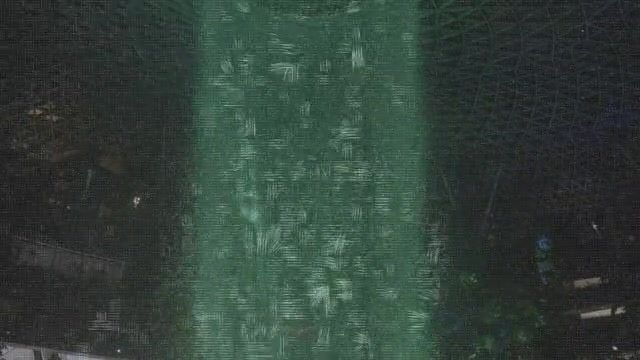
The white lines are Motion Vectors - notice how many more appear in the waterfall area (showing movement) compared to the static background. This non-uniform distribution produces CV = 1.33, correctly classifying this as “subject motion” rather than camera shake.
The combined algorithm becomes:
def classify_stability(max_jerk, avg_cv):
    if max_jerk <= 15:
        return 'stable'  # Low jerk = stable regardless
    elif avg_cv < 0.7:
        return 'shaky'   # Uniform motion = camera shake
    elif avg_cv > 1.0:
        return 'stable'  # Non-uniform = subject motion, camera fine
    else:
        return 'shaky'   # Mixed zone, be conservative
Validation: Human vs Algorithm
To test this, I watched two clips frame-by-frame and manually classified every second as “stable” or “shaky” based on whether I’d actually use that footage. Then I compared my judgment to what the algorithm produced. 96 seconds total, no cherry-picking.
C2713: Nicole at the Met, New York (38 seconds)
Result: 100% agreement with my manual review. The algorithm matched my judgment on every second:
| Seconds | Classification | What’s Happening |
|---|---|---|
| 0, 2 | stable (low_jerk) | Static tripod shot |
| 1, 3-8 | shaky (mixed) | Camera and operator adjusting position |
| 9-18 | stable (low_jerk) | Locked off, subject walking |
| 19-20 | shaky (mixed) | Zoom motion |
| 21-36 | stable (subject_motion) | Subject moving, camera steady |
| 37 | shaky (mixed) | Pan and refocus at end |
The CV approach correctly distinguished between camera shake (sec 1, 3-8) and subject motion (sec 21-36). Without CV, the subject’s movement would have been misclassified as camera shake.
Full Per-Second Analysis with Motion Vector Visualization
| Sec | Jerk | CV | Classification | Reason | Notes |
|---|---|---|---|---|---|
| 0 | 14.3 | 0.75 | stable | low_jerk | Static shot |
| 1 | 23.6 | 0.72 | shaky | mixed | Small camera shakes |
| 2 | 9.3 | 0.78 | stable | low_jerk | Stable |
| 3-8 | 28-72 | 0.76-0.93 | shaky | mixed | Camera and operator moving |
| 9-13 | 5.6-12.1 | 1.38-1.93 | stable | low_jerk | Locked off, high CV from subject |
| 14 | 12.3 | 1.26 | stable | low_jerk | Minor shake, still usable |
| 15-18 | 4.3-13.7 | 1.24-1.48 | stable | low_jerk | Stable |
| 19-20 | 34-35 | 0.74-0.99 | shaky | mixed | Zoom motion detected |
| 21 | 34.5 | 1.29 | stable | subject_motion | Subject moving, camera steady |
| 22-31 | 5.1-12.8 | 0.89-1.22 | stable | low_jerk | Stable throughout |
| 32-36 | 12-36 | 1.06-1.32 | stable | subject_motion | Subject walking toward camera |
| 37 | 37.0 | 0.83 | shaky | mixed | Camera refocuses and pans up |
C1255: Reacting to the Jewel, Singapore (58 seconds)
Result: 91% strict agreement with my manual review, 98% practical accuracy.
| Seconds | Algorithm | My Call | Issue |
|---|---|---|---|
| 0-1 | stable | stable | Correct |
| 2-5 | shaky | usable | Waterfall fills frame - uniform motion mimics shake |
| 6-41 | mixed | correct | 36 seconds, all classifications matched |
| 42 | stable | shaky | Subject motion masked actual camera jerk |
| 43-57 | stable | stable | Correct |
The 4 errors at sec 2-5 mean I’d skip usable footage - the algorithm wrongly flagged it as shaky. That’s lost opportunity. The 1 error at sec 42 is worse: actual shake marked as stable, so I’d waste time with unusable footage. Both error types matter, but at 95% accuracy across 96 seconds, the algorithm is reliable enough for triage.
Full Per-Second Analysis with Motion Vector Visualization
| Sec | Jerk | CV | Classification | Reason | Notes |
|---|---|---|---|---|---|
| 0 | 19.8 | 1.42 | stable | subject_motion | Good |
| 1 | 11.0 | 1.00 | stable | low_jerk | Good |
| 2 | 19.8 | 0.70 | shaky | camera_shake | Minor shake, usable - waterfall fills frame |
| 3 | 23.0 | 0.81 | shaky | mixed | Usable - waterfall uniform motion |
| 4 | 25.3 | 0.97 | shaky | mixed | Subject’s head fills frame |
| 5 | 39.6 | 0.79 | shaky | mixed | Subject moving |
| 6-7 | 18-20 | 1.04-1.06 | stable | subject_motion | Correct |
| 8-9 | 29-45 | 0.79-0.91 | shaky | mixed | Actual shake |
| 10-11 | 14-17 | 1.13-1.33 | stable | low_jerk/subject | Correct |
| 12-15 | 19-30 | 0.66-0.87 | shaky | mixed/camera_shake | Actual shake |
| 16-17 | 18-29 | 1.01-1.20 | stable | subject_motion | Correct |
| 18-23 | 5-26 | 1.00-1.45 | stable | low_jerk/subject | Correct |
| 24-27 | 25-60 | 0.81-1.00 | shaky | mixed | Actual shake |
| 28-36 | 7-21 | 1.24-1.44 | stable | low_jerk/subject | Stable, includes smooth pan at 36 |
| 37-38 | 42-47 | 0.89-0.92 | shaky | mixed | Actual shake |
| 39-41 | 22-30 | 1.11-1.16 | stable | subject_motion | Zoom, usable |
| 42 | 20.0 | 1.12 | stable | subject_motion | Missed jerk - subject motion masked it |
| 43-57 | 7-24 | 1.02-1.29 | stable | low_jerk/subject | All stable, minor jerks noted but usable |
Combined Results
| Metric | C2713 | C1255 | Combined |
|---|---|---|---|
| Algorithm matched my judgment | 38/38 (100%) | 53/58 (91.4%) | 91/96 (94.8%) |
| Practically correct | 38/38 (100%) | 57/58 (98.3%) | 95/96 (99.0%) |
For a triage tool, this is the right failure mode: be conservative. The 4 false positives flag footage for review that turns out to be usable - a minor inconvenience. The single false negative is the only real error, and even that was borderline footage I’d probably stabilize in post anyway.
Where the Methods Disagree: Times Square
Here’s the most striking example of why Motion Vectors beat Pixel Difference. This is Times Square at night - LED screens everywhere:
Pixel Difference sees constant change - the billboards are animated, pixels are changing everywhere. It rates only 30% of this clip as stable. But watch the footage: the camera is mostly steady. The Motion Vector approach correctly identifies 64% as stable because it measures where pixels moved, not that they changed. The LED screens change color but don’t shift position.
More Examples
C1713 (Palatine Hill) - Mostly stable (75%) with brief shaky moments scattered throughout.
C3689 (Grand Canyon Dome) - Animated dome projection. Both methods correctly identify as stable.
C7413 (Waterfall) - Static tripod shot of waterfall. Both methods correctly identify as stable.
IMG_2135 (Hockey Game) - Both methods correctly rate this iPhone footage as usable.
IMG_2363 (Train Arriving) - Train passing through frame. Both methods rate as stable.
Practical Implementation
Storage Design
I chose 1-second chunks, merged for storage. Each chunk stores the maximum jerk value - if any frame in that second has high jerk, the whole chunk gets flagged. Adjacent chunks with the same rating merge into segments.
Store raw values, classify at query time:
JERK_THRESHOLD = 15  # adjustable without reprocessing
shaky_segments = [s for s in segments if s['max_jerk'] > JERK_THRESHOLD]
Try adjusting the threshold yourself:
Drag the slider to see how different thresholds classify the same footage. Lower threshold = stricter; higher = more permissive.
Final Storage Format
Rather than one database row per second (which would be 300,000+ rows for my collection), I store a JSON summary per clip. Here’s the actual output for C1250.MP4:
{
  "segments": [
    {"start": 0.0, "end": 2.0, "rating": "stable", "max_jerk": 2.7},
    {"start": 2.0, "end": 7.0, "rating": "shaky", "max_jerk": 76.2},
    {"start": 7.0, "end": 8.0, "rating": "stable", "max_jerk": 4.8},
    {"start": 8.0, "end": 18.0, "rating": "shaky", "max_jerk": 73.5},
    {"start": 18.0, "end": 19.0, "rating": "stable", "max_jerk": 3.7},
    {"start": 19.0, "end": 24.0, "rating": "shaky", "max_jerk": 63.0}
  ],
  "chunk_size": 1.0
}
This tells me exactly where the problems are: seconds 2-7 (early camera adjustments with the worst jerk at 76.2) and 8-18 (the whip pan and its aftermath). The brief stable moments at 7-8s and 18-19s are preserved - they might be useful for transitions even if they’re short. Adjacent chunks with the same rating get merged into segments, keeping storage compact (typically 3-10 segments per clip) while preserving full timeline coverage.
Scaling to 6,000 Videos: Processing Speed and Memory Leaks
Processing Speed
With ~6,500 clips totaling 57 hours of video, processing time matters.
Why is this CPU-intensive when the encoder “already computed” the Motion Vectors? Because we still have to decode the video - the same work your video player does during playback. Motion Vectors aren’t stored in a separate index; they’re interleaved throughout the compressed bitstream. To access them, the decoder must parse the bitstream and reconstruct each frame’s context.
Single-threaded extraction runs at about 28 fps - tolerable for one video, painful for thousands. Two optimizations help:
-
Multithreaded decoding: Setting
thread_count=4on the codec context lets FFmpeg parallelize frame decoding. -
Multiprocessing: Running 6 worker processes in parallel, each handling different videos.
With both, the full dataset processes in 4-5 hours at ~12 videos/minute - a 10x speedup over single-threaded.
The Memory Leak
Scaling revealed a nasty problem: memory grew unbounded until crash. After hours of investigation, I found PyAV GitHub discussion #1975: PyAV 14.0.0+ has a memory leak in the C extension, unreachable by Python’s garbage collector.
The fix: kill workers frequently using max_tasks_per_child=1:
with ProcessPoolExecutor(max_workers=6, max_tasks_per_child=1) as executor:
    futures = {executor.submit(analyze_video, v): v for v in videos}
Memory now oscillates 5-15GB instead of climbing to 55GB. The lesson: test with full datasets early.
Limitations and Edge Cases
This approach works well for my use case - quickly triaging 6,000 clips to find usable segments - but it’s not perfect. A few things to keep in mind:
Resolution Affects Results
Lower resolution = fewer blocks = less granular motion detection. I tested the same clip (C5749) at multiple resolutions:
| Resolution | Stable (s) | Max Jerk | Stable % |
|---|---|---|---|
| 4K (3840px) | 1.0 | 305 | 3% |
| 1080p | 9.0 | 277 | 27% |
| 720p | 13.0 | 247 | 39% |
| 480p | 16.0 | 117 | 48% |
| 360p (proxy) | 19.0 | 109 | 57% |
The 360px proxy detected 18 more seconds of stable footage than 4K - downscaling averages out micro-jitter that creates real MV jerk at higher resolutions. For reliable results, analyze the highest resolution available. If the proxy shows shaky, the original definitely is; if the proxy shows stable, verify on the original.
High-Contrast Edges Help
Encoders find MVs by searching for matching blocks. High contrast (architecture, faces) = precise MVs. Low contrast (sky, fog) = unreliable MVs. Footage of mostly blue sky may produce spurious results, but travel footage with scene content works reliably.
It’s a Triage Tool, Not a Judge
A clip flagged as “shaky” probably is. A clip flagged as “stable” is worth reviewing but might still have issues (focus hunting, rolling shutter). For 6,000 clips, reducing manual review from 50 hours to 5 hours is the win.
If Your Camera Records Gyroscope Data, Use It
Everything above describes a universal solution - Motion Vectors exist in any H.264/H.265 video file, regardless of what camera recorded it. iPhone footage from 2015, stock video from the internet, screen recordings - they all have MVs we can analyze.
But some cameras embed something even better: actual gyroscope and accelerometer data recorded during filming. This is ground truth for camera motion - no inference required.
Sony Cameras: IMU Data Built In
Sony mirrorless cameras (a7 IV and later, a6700, FX series, ZV series, some RX models) embed gyroscope data directly in the MP4 file. The data structure looks like this:
MP4 Container
├── Video Track (H.264/H.265)
├── Audio Track (AAC)
└── Metadata Track (RTMD - Real Time Metadata)
    ├── Gyroscope samples (X, Y, Z angular velocity in °/s)
    ├── Accelerometer samples (X, Y, Z acceleration in m/s²)
    ├── Lens information (focal length, focus distance)
    └── IBIS/OIS compensation data
The gyroscope samples at ~2000 Hz - far more granular than 24-60 video frames. Tools like Gyroflow use this data for precise video stabilization, and telemetry-parser can extract it. If you noticed the “Ground Truth” bar in the C1250 Rome Airport example earlier, that’s this gyroscope data - and it closely matches what Motion Vector analysis found.
Other Cameras with Embedded IMU
| Camera Brand | Models with Gyro Data | Notes |
|---|---|---|
| Sony | a1, a7 IV+, a7S III, a7C, a7R V, a9 III, a6700, FX3/6/9/30, ZV series, RX100 VII, RX0 II | Earlier models (a6500, a6600, a7R IV, a9 II) do NOT have gyro |
| GoPro | HERO 5 and later | Also includes GPS |
| Insta360 | OneR, OneRS, GO series, Ace, Ace Pro | |
| DJI | Avata 1/2, Action 2/4/5, O3/O4 Air Unit | |
| Blackmagic | Cameras recording .braw | |
| RED | V-Raptor, KOMODO | |
| Canon | C50, C80, C400, R5 II, R6 III | Cinema line and newest mirrorless only |
What About iPhones?
iPhones have gyroscopes but Apple doesn’t embed this data in the video file. Third-party apps can record it separately, but that requires syncing.
Most cameras don’t embed gyro data - notably absent: Nikon, Panasonic, Fujifilm, Pentax, Olympus, older Sony, and every smartphone. Motion Vectors work on everything: Sony footage, iPhone videos, stock footage, old vacation videos. If you have a camera with embedded gyro, use it. If not, Motion Vector analysis gives you 95%+ accuracy anyway.
Validating Motion Vectors Against IMU Ground Truth (2,026 clips)
After discovering my Sony a6700 had embedded gyroscope data, I ran both analyses on my entire Sony library to see how well Motion Vectors approximated ground truth.
| Metric | Value |
|---|---|
| Clips analyzed | 2,026 |
| Correlation (stable seconds) | 0.914 |
| Correlation (stable %) | 0.562 |
| Mean difference | IMU +4.9s more stable |
| IMU shows more stable | 68% of clips |
| Agreement within 2s | 37% of clips |
The 0.914 correlation validates that Motion Vectors reliably measure stability. The systematic bias - IMU showing ~5 more seconds of stable footage per clip - makes sense: MV analysis can’t perfectly distinguish subject motion from camera shake, so it’s more conservative. For triage, this conservatism is actually desirable - better to flag a clip for review than miss genuine shake.
The lower percentage correlation (0.562) reflects that short clips amplify small absolute differences. A 2-second difference on a 10-second clip is 20%, but on a 60-second clip it’s only 3%.
Bottom line: If you have IMU data, use it. If not, Motion Vector analysis gets you 90%+ of the way there.
Putting It All Together
This stability analysis is one piece of a larger system for turning 6,000 clips into video essays. The full pipeline:
-
Describe: AI vision models (Qwen, Gemma) watch each clip and generate rich descriptions - not just “people walking” but temporal narratives of what happens when.
-
Analyze: Stability analysis (this essay), sharpness detection, and motion characterization tag each clip with technical metadata.
-
Search: Semantic search lets me find clips by meaning - “peaceful temple scenes in Kyoto” or “Nicole reacting to something amazing.”
-
Write: I write the video essay narrative first. The system suggests clips that match each section, filtered by stability and other constraints.
-
Export: Selected clips export directly to DaVinci Resolve as a timeline, with chapters and markers intact.
The stability analysis solved a specific problem: I kept finding semantically perfect clips that were unusable because they were shaky. Now “find me stable shots of the Colosseum at sunset” actually returns stable shots.
This is one essay in a series on building this system. Future essays will cover AI-powered clip description, narrative construction with semantic search, and the DaVinci Resolve integration.
What I Learned
The encoder already knows. That’s the key insight. Video compression algorithms have been solving motion estimation for decades - not because anyone cared about “stability analysis,” but because predicting where pixels move is fundamental to compression. We’re just reading data that was always there.
This pattern appears everywhere in software: the solution often exists in adjacent systems, computed for entirely different reasons. Database query planners know which columns are selective. Web servers know which endpoints are slow. Compilers know which functions are hot. The challenge is recognizing when your problem maps to data someone else already computed.
Try It Yourself
If you want to experiment with Motion Vector extraction, the key libraries are:
- PyAV for accessing FFmpeg’s codec internals
- sqlite-vec for efficient segment storage and querying
- Any H.264/H.265 video file - Motion Vectors are universal
The core algorithm is simple enough to implement in an afternoon. The edge cases (subject motion, resolution sensitivity, memory leaks at scale) take longer. If you build something interesting or have questions, I’d enjoy hearing about it - my email is in the footer.